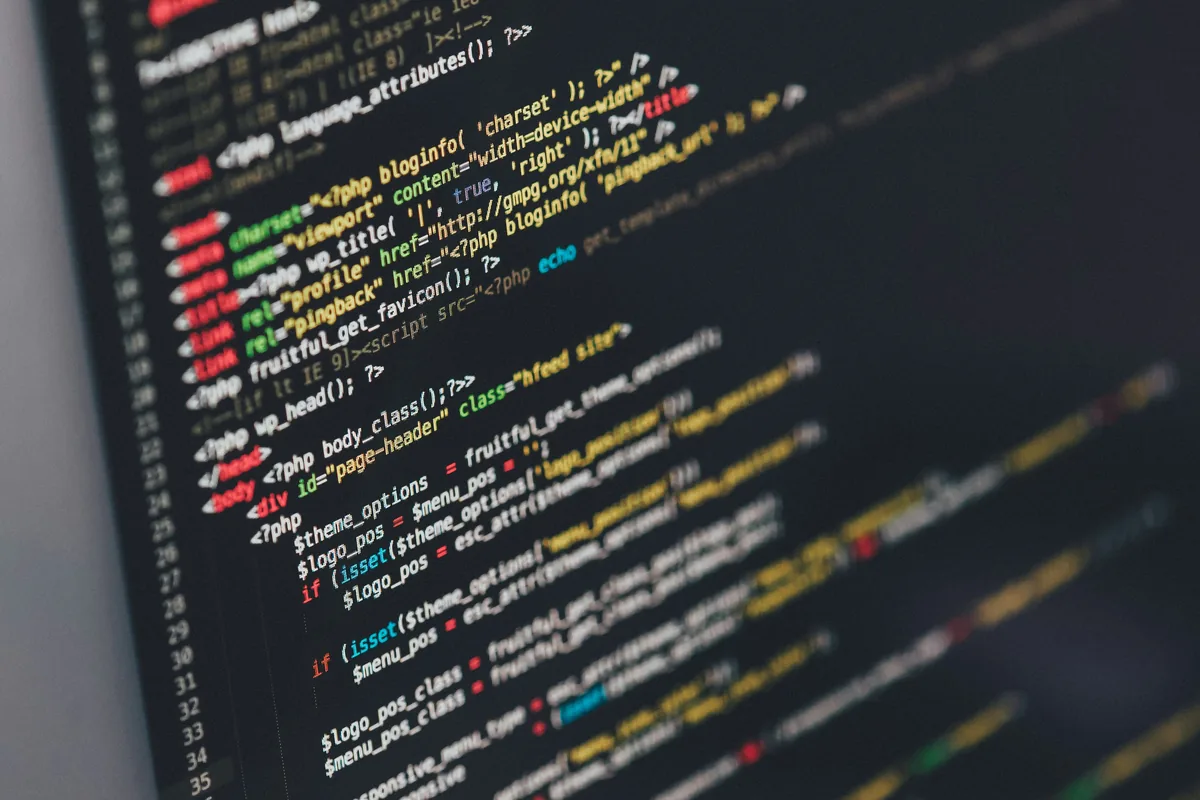
The call we get most often after a hosting PHP upgrade is always the same: "the site was fine yesterday, now it is a white page." Nothing was hacked and nothing was deleted - the hosting moved the site to a newer version of PHP overnight, and some part of the site's code was too old to run on it.
Why the site broke
PHP is the language most small to medium business websites run on - WordPress, most contact forms, most booking systems. When a host retires an old PHP version, sites move to a newer one automatically. Newer PHP removes old functions that developers stopped using years ago. If your theme, a plugin or a piece of custom code still calls one of those removed functions, PHP stops at that line and the page dies.
That is the whole story behind most post-upgrade breakage: a deprecated function that was printing warnings nobody looked at, which has now been removed entirely and kills the page instead.
The three failure shapes
A white screen with nothing on it usually means a fatal error early in the page load - often a plugin calling a removed function.
A "500 Internal Server Error" is the same class of problem seen through a different web server configuration - the code failed, and the server reported a generic error instead of showing it.
Visible warnings across the top of the page - "Deprecated:", "Warning:", "Notice:" - mean the code is running but on borrowed time. Those functions are already marked for removal and will become fatal errors on the next PHP upgrade.
Where the error log is
Almost every hosting control panel has one. In cPanel look under Metrics or Logs for "Errors"; on managed WordPress hosting it is often labelled "PHP error log" or sits in a file called error_log in the site root. That log names the exact file and line number that failed - which is why we read it before touching anything else.
What we do in the first 20 minutes
A typical call goes like this: you give us hosting panel or SFTP access, we pull the error log, and within a few minutes we know which plugin, theme file or custom script caused the break. Most fixes are small - patching the call to a supported function, updating or replacing the one plugin that was not ready, or correcting a PHP configuration value. Many sites are back up inside the £39.99 + VAT first-20-minutes window.
When it becomes a quoted job
Some sites need more than a patch. If the log shows widespread deprecated code across a custom application, or the site needs a planned PHP 8 upgrade with plugin-by-plugin compatibility checks, we stop and scope it properly - a written quote before chargeable work continues, never a surprise bill. The same applies to a hacked-site clean-up or a rebuild: we tell you the cost first and you decide.
The plugin problem in plain terms
WordPress sites break this way more than anything else, because a typical small to medium business site runs fifteen to twenty plugins written by different developers in different years. When a plugin's author has kept up with PHP changes, the update is invisible. When they have not - or the plugin was abandoned years ago but still works - the upgrade exposes it. The site owner did nothing wrong; the code underneath simply aged.
That is also why "just update everything" is not always the answer. Sometimes the fix is updating the plugin to a version the author already patched. Sometimes it is replacing an abandoned plugin with a maintained one. Sometimes it is a two-line patch to a custom theme your web designer wrote in 2019. The error log tells us which situation you are in.
What the repair actually looks like
For a typical white-screen call, the remote session is quiet and methodical. We take hosting panel or SFTP access with your permission, pull the PHP error log and identify the failing file. If it is a plugin, we confirm whether a patched version exists and apply it. If it is theme code, we patch the call to a supported function. Then we reload the site, check the pages that matter - homepage, contact form, booking or shop - and write down what was changed. You get a working site and a note of exactly what was done, which matters the next time something similar happens.
What to do right now
Check whether your host emailed about a PHP version change in the last week. Do not reinstall WordPress or start deleting plugins - the site is one small code fix away from working, and random changes make it harder, not easier. Then either work through the error log yourself or call us: the £39.99 remote repair covers exactly this kind of fault, and the PHP fixes page explains what we cover. If your site has been flagged for an outdated PHP version by a security scan, the fix is the same route - just planned rather than urgent.
Discuss your IT priorities
Get a free IT audit from Riverbank IT Systems. Free initial advice, with no obligation to proceed.