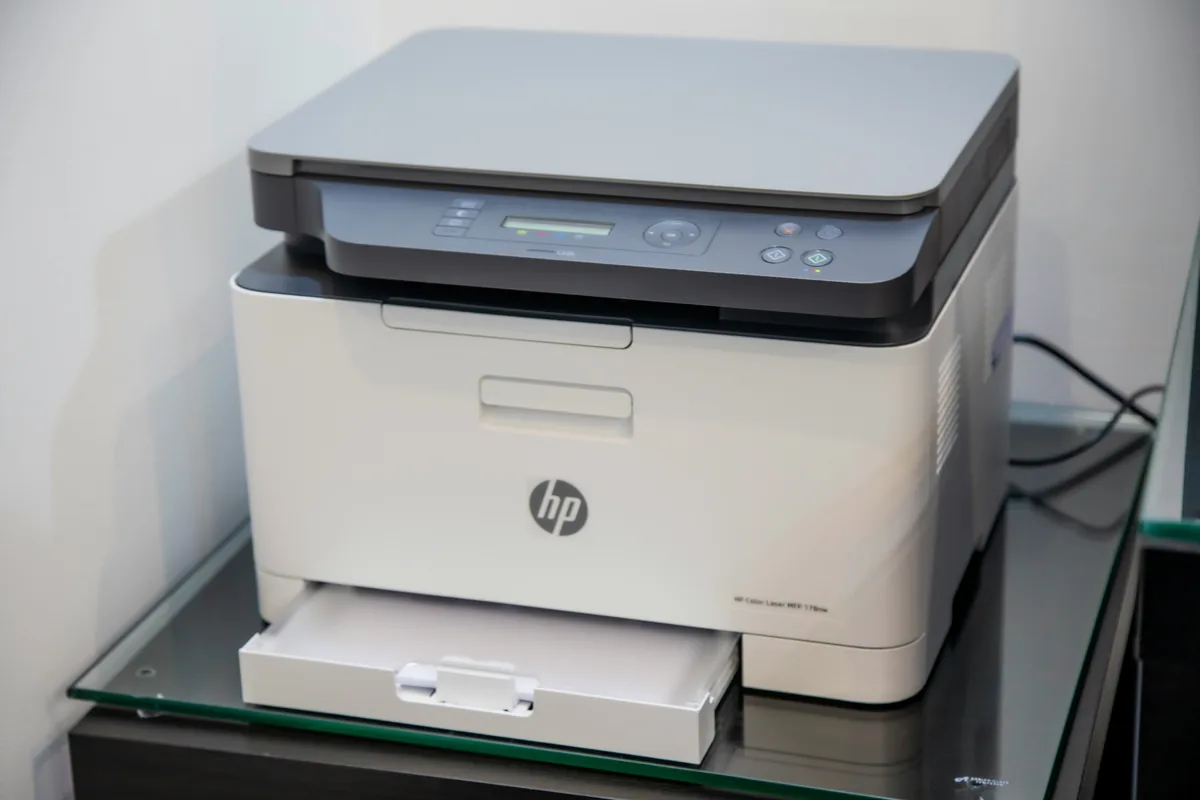
The printer is on, it has paper, and Windows 11 still insists it is offline. This is one of the most common calls we take, and it is nearly always software, not the printer. Work through these steps in order.
On our own helpdesk, printer-offline calls are almost always the spooler, the driver or a changed IP address rather than a dead printer - which is why they usually get fixed remotely inside a short session.
1. Do the boring checks first
Restart the printer and the PC - genuinely, not sleep. On the printer's own screen check it shows "Ready" and is connected to the office Wi-Fi, not a guest network or an old router. Print a network or status page from the printer's menu and confirm it has an IP address on your network.
2. Clear the print queue
A single jammed job blocks everything behind it. Settings, Bluetooth and devices, Printers and scanners, select the printer, Open print queue, then Printer menu, Cancel All Documents. If a job refuses to cancel, restart the print spooler service: press Win+R, type services.msc, find Print Spooler, right-click, Restart.
3. Take Windows off "use printer offline"
In the same print queue window, open the Printer menu and untick "Use Printer Offline" if it is ticked. Also untick "Pause Printing". This single setting causes a large share of "offline" reports - nobody knows how it got ticked, but it does.
4. Remove and re-add the printer
If it still shows offline, delete it: Printers and scanners, select the printer, Remove. Restart the PC, then add it back with Add device. For a network printer that does not appear, choose "Add manually" and enter the IP address from the status page you printed earlier. Reinstalling the latest driver from the manufacturer's site rather than Windows' generic one fixes flaky detection.
5. Check the network side
If the printer drops offline every few days, its IP address is probably changing. Give it a reserved address in the router's DHCP settings so it stays put, or connect it by cable if it sits near the router. On shared PCs, also check which printer is set as default - Windows 11's "Let Windows manage my default printer" quietly swaps defaults to whichever was used last.
6. Driver and port problems
In Settings > Bluetooth & devices > Printers & scanners, open the printer and check which driver Windows is using. After a Windows update, a printer can silently switch to a generic class driver that half-works - install the manufacturer's current Windows 11 driver over the top. Then open Printer properties > Ports and confirm the port still matches the printer's actual IP address. A router restart that hands the printer a new IP is one of the most common reasons a previously fine printer reports "offline" overnight; reserving the printer's IP in the router stops it recurring.
7. The print spooler service
The spooler is the Windows service that feeds jobs to the printer and it stops more often than it should. Press Win+R, type services.msc, find Print Spooler and restart it. If it is stopped or keeps stopping, that alone produces the "offline" lie Windows shows. If the spooler crashes every time a specific document is sent, delete that document from the queue first - a corrupt job will kill the spooler on every retry.
8. When it is the printer itself
Print a status or configuration page directly from the printer's own control panel - that removes the computer entirely. If the printer cannot print its own page, the fault is the printer: paper path, toner, firmware or hardware. If it can, the problem sits between the printer and the network or PC. Check the printer's network menu shows it on the right Wi-Fi or wired network and that its IP is reachable from your computer (open its IP in a browser).
When the fix is beyond these steps
If the printer works from one PC but not another, the fault is on that PC. If it fails everywhere, look at the printer's own network settings or the router. Either way, an engineer can sort it remotely in a few minutes - queue, driver, spooler and all.
That is what our £39.99 + VAT remote IT repair is for: the first 20 minutes of remote diagnosis and repair at a fixed price, and most printer problems fit inside it. Call 07967 928551 or send the repair form on the page.
About the author
Written by Timothy, founder of Riverbank IT Systems - more than 25 years of hands-on business IT. He still runs the free IT audits and scopes every written quote. More about Timothy.
Discuss your IT priorities
Get a free IT audit from Riverbank IT Systems. Free initial advice, with no obligation to proceed.