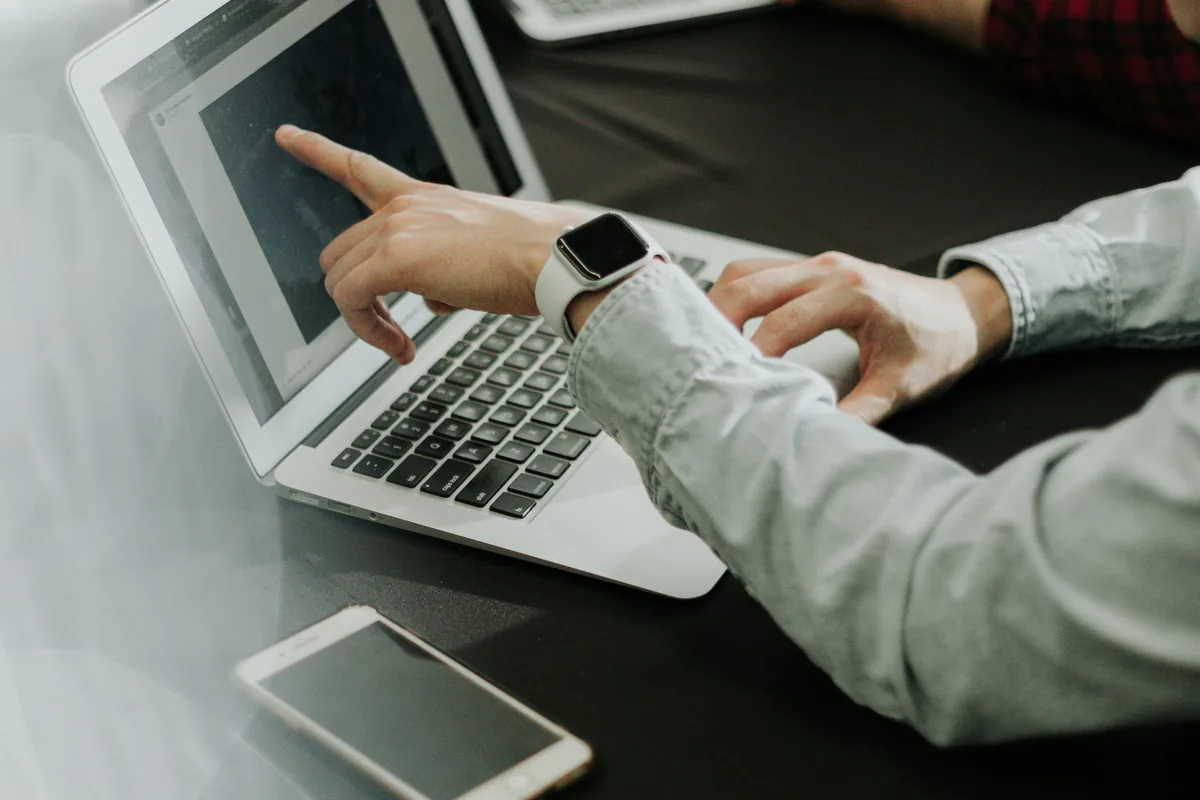
Nothing derails a client call like "can you hear me?" for five minutes. Teams audio and video faults have a short list of causes - here is how to find yours.
On our own helpdesk, Teams camera and microphone calls are usually permissions or the wrong device selected - rarely broken hardware.
1. Check Teams is using the right devices
In Teams, go to Settings, Devices. Check the speaker, microphone and camera each show the device you expect - not "Default" pointing at a headset that is unplugged or a monitor with no camera. Use "Make a test call" (at the bottom of that page) to confirm. If you plug in a USB headset or webcam mid-call, Teams does not always switch automatically - pick it in the device menu during the call.
2. Windows privacy permissions
Windows 11 can block mic and camera access entirely. Settings, Privacy and security, then Camera and Microphone - check both are on, "Let apps access" is on, and Teams appears in the app list. If Teams is missing, reinstall it. This is the most common cause after a Windows update.
3. Another app has the device
Only one app can use some cameras and microphones at a time. Close Zoom, browser tabs with Meet open, the camera app, and any recording software, then restart Teams. If the camera light is on but the image is black, something else is holding it.
4. Update drivers and Teams
Check Device Manager for a warning triangle on the camera or audio device - right-click, update driver. In Teams, use the menu to check for updates; Teams updates itself but a stuck update causes odd device bugs. A full restart of the PC after updates is not optional.
5. The web version as a test
Join the meeting in a browser at teams.microsoft.com instead of the app. If camera and mic work there, the desktop app install is broken - clear its cache (%appdata%\Microsoft\Teams) or reinstall. If it fails in the browser too, it is hardware or Windows-level.
6. Docks, USB and headset conflicts
Docking stations and USB hubs cause a large share of Teams audio and camera faults, especially when devices are hot-plugged while Teams is running. Test with the headset or camera plugged directly into the laptop, and quit Teams fully first (right-click the system tray icon > Quit) so it re-detects devices on launch. A Bluetooth headset still connected to your phone will also fight for the audio profile - disconnect the phone side and test again.
7. Managed-device policies
On work-managed laptops, camera and microphone permissions can be enforced by company policy through Intune or group policy rather than Windows settings - the toggles look available but are silently overridden. If this is a company laptop, that is deliberate configuration, not a fault, and it needs an admin to change it. Also check antivirus "webcam protection" features, which block camera access per-app without saying so in plain terms.
8. Audio enhancements and sample rates
In Windows Sound settings, open the headset's properties and disable audio enhancements and exclusive mode - enhancement pipelines break Teams audio more often than they help. If a USB headset works in everything except Teams, delete it from Teams > Settings > Devices and let Teams pick it up fresh, or choose the device explicitly rather than leaving it on "Default".
Two less obvious culprits worth ruling out: a laptop lid closed while docked (the built-in camera and mic vanish, and Teams does not always pick the externals), and privacy covers or hardware mute switches on the headset itself - more meetings have been defeated by a slid-across webcam shutter than by any software fault.
If the camera works but the image is poor - dark, blurry or lagging - that is usually bandwidth or lighting rather than a fault. Teams drops video quality before it drops the call; a wired connection or better light in front of you fixes what no driver update will.
When it still will not work
Driver, permission, cache and settings faults are all remote fixes and most are sorted inside our £39.99 + VAT remote IT repair first 20 minutes. A genuinely dead webcam or headset is hardware - we will tell you that honestly rather than bill you for finding out. Call 07967 928551.
About the author
Written by Timothy, founder of Riverbank IT Systems - more than 25 years of hands-on business IT. He still runs the free IT audits and scopes every written quote. More about Timothy.
Discuss your IT priorities
Get a free IT audit from Riverbank IT Systems. Free initial advice, with no obligation to proceed.